Getting Started
This page sums up the procedure that allows INFN users to set up their computing environment and start submitting jobs to the Magellano resources.
Credentials
In order to acces Magellano resources, you need valid credentials on the local IT systems at INFN Sezione di Pisa.
Credentials are provided by default to all personnel of INFN Sezione di Pisa. If you are associated to a different INFN site, you must require access to our local resources. To do this, please submit a ticket to the local IT Service Desk.
Note
Your IT credentials are the same that you use to log into the INFN user portal.
First Time Login
If you never used local resorces at INFN Sezione di Pisa, you need to initialize your user environment.
You can do this by opening a terminal and connecting to the setupui utility shell:
ssh <username>@setupui.pi.infn.it
This operation automatically creates your home directory and configures your environment. See File Systems for more information about your home directory.
If the operation succeeds, simply type exit to close the session.
You only need to do this operation once when accessing our systems for the first time.
Submit Your First Batch Job
Users can submit jobs from our magellano login node using the Slurm Workload Manager command line tools.
You can access magellano fron inside the local network at INFN Sezione di Pisa.
Alternatively, you can connect to our VPN following the internal VPN guide.
To connect to magellano, run the following ssh command and type in your INFN credentials:
ssh <username>@magellano.pi.infn.it
Once you are connected, you will have access to the Slurm CLI commands. To check if everithing is working, write a simple batch file and save it into your home directory. For example:
cat << EOF > example.batch
#!/bin/bash
#SBATCH --account default         # choose the 'default' Slurm account
#SBATCH --partition levante       # choose the 'levante' node partition
#SBATCH --ntasks 1                # run a single process
#SBATCH --cpus-per-task 1         # allocate one cpu per process
#SBATCH --mem 1024                # allocate 1GB of memory
#SBATCH --time 10                 # set a time limit of 10 minutes
#SBATCH --output example.out      # save standard output to this file
#SBATCH --error example.err       # save standard error to this file

hostname -f                       # this is the command that will be executed
EOF
Submit the example.batch script:
sbatch < example.batch
See the status of your job:
squeue -u <username>
If the job has terminated, see the content of the output file:
cat example.out
You should see the name of the node your job was scheduled to.
See Slurm CLI to learn more about the Slurm scheduler and its command. See also HPC Cluster for a list of available Slurm partitions.
Run an Interactive Job With OnDemand
You can use the Magellano OnDemand web tool to run a remote desktop on our HPC resources.
Use your browser to connect to the web site and authenticate using your INFN AAI identity.
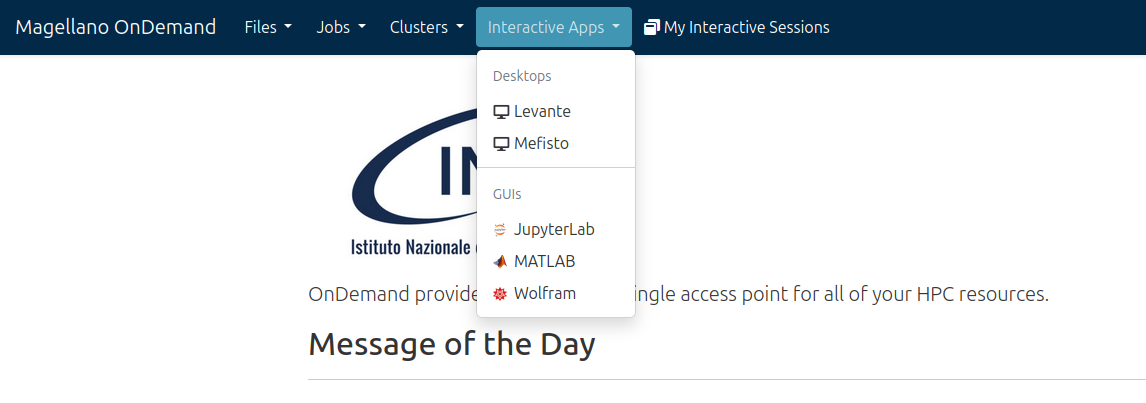
Once authenticated, open the Interactive Apps menu on the top navbar.
You will see a list of options. Select one of the clusters (for example, Levante) under the Desktops section.
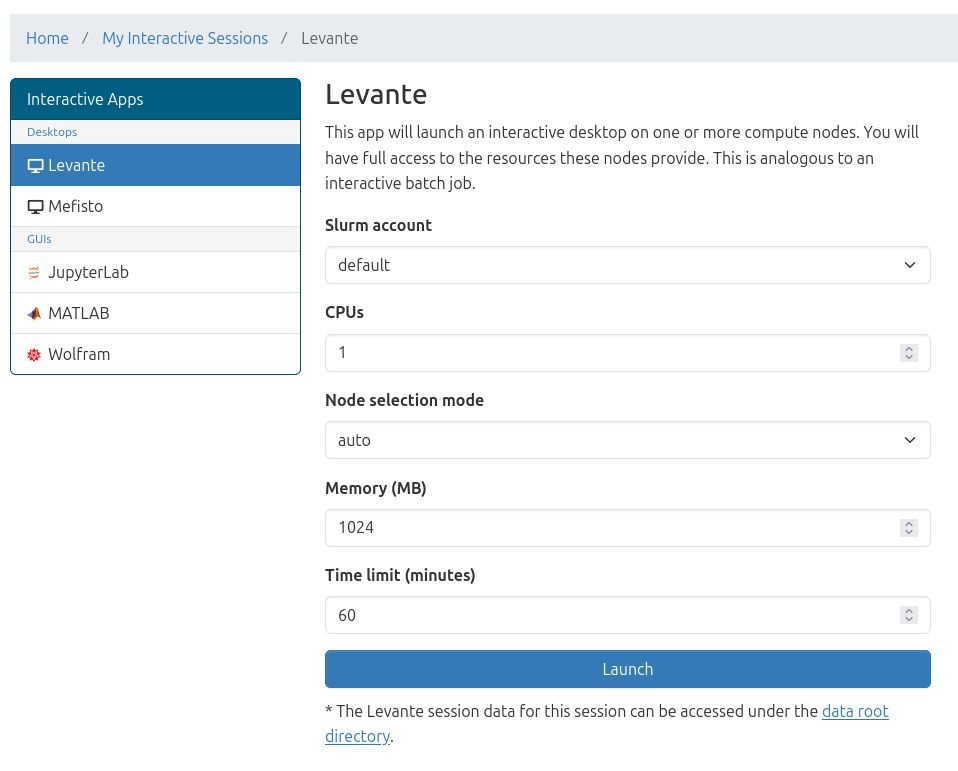
This will open a submit form that allows you to set the required CPUs, memory and time of your job,
You can leave the Slurm account and Node selection mode fields to their default values.
Click on the Launch button.
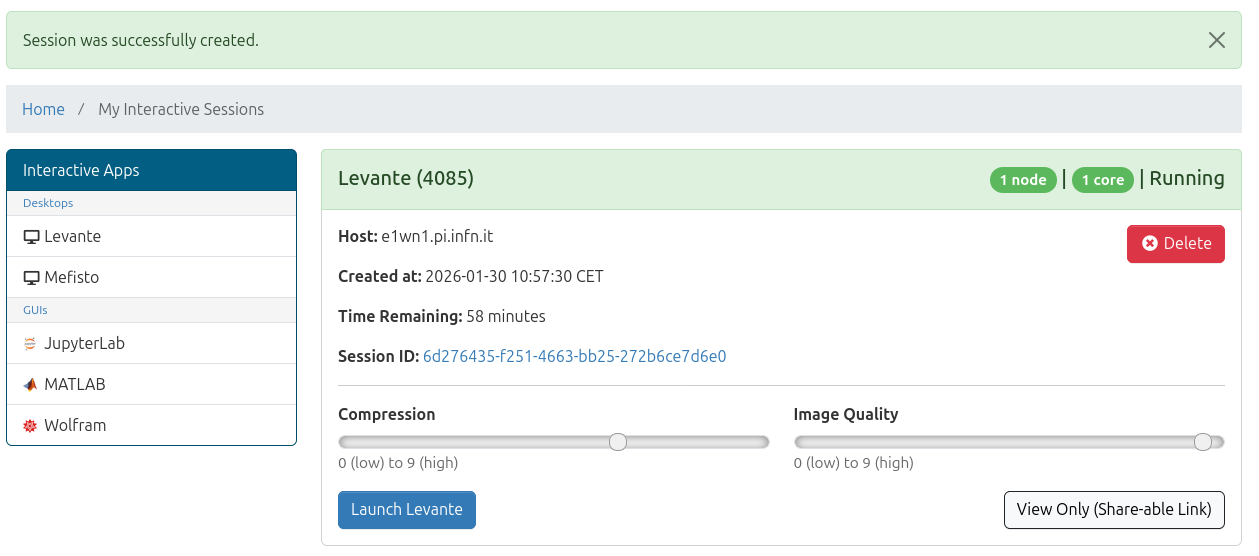
At this point your interactive job is being scheduled. You will see a box with info about your job and the label Queued.
As soon as the session is ready, the label will change to Running.
Click on the Launch button to connect to the remote dektop.
This will open a new tab in your brower with an XFCE dektop session. There are a number of pre-installed utilities in this environment, such as a terminal emulator, a file browser and a web browser. You can also run the GUIs of interactive apps available on the Magellano infrastructure.
When you are finished, go back to the OnDemand tab and click on Delete to close your session.
What next?
You are all set! You can start submitting your jobs to the Magellano HPC infrastructure.
We recommend reading this documentation in its entirety to become familiar with the available hardware and software. See also the Slurm Workload Manager documentation to learn how to use the scheduler.